Tables and key/value pairs
Extract table rows and named values such as invoice numbers, dates and totals. Map them into JSON or XML, or keep their document layout in Excel.
Extract tables, key-value pairs and individual fields into your output.
Read scanned pages with OCR. Save a template and reuse it on the next file.
No generative AI. Your templates define the output.
Start with one file. Build a workflow you can use again.
{
  "invoice": "123",
  "customer": "Acme Ltd",
  "total": 5500,
  "items": [
    { "item": "Scanner",
      "qty": 1, "amount": 5000 },
    { "item": "USB cable",
      "qty": 2, "amount": 500 }
  ]
}Invoice: 123
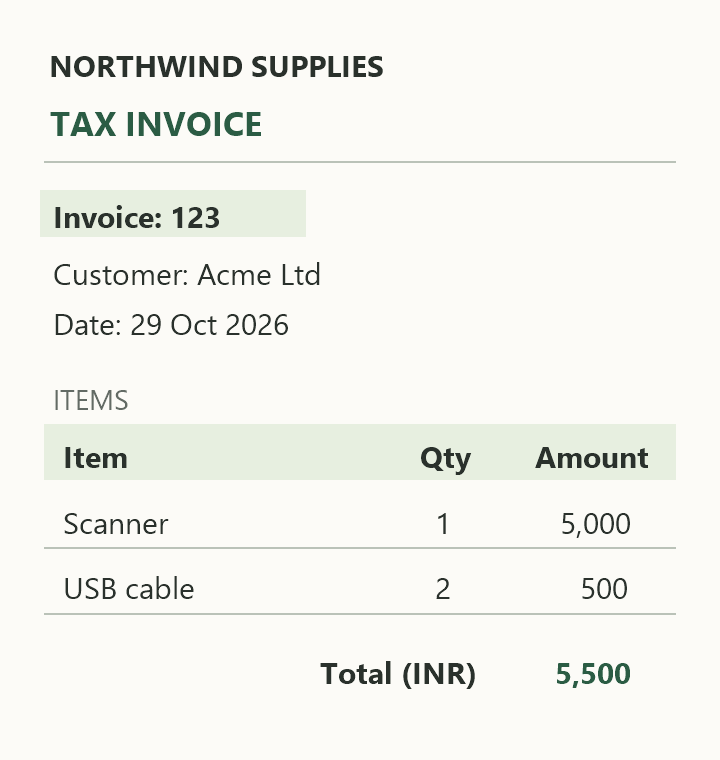
Customer: Acme Ltd
| Item | Qty | Amount |
|---|---|---|
| Scanner | 1 | 5,000 |
| USB cable | 2 | 500 |
| Total (INR) | 5,500 | |
Extract table rows and named values such as invoice numbers, dates and totals. Map them into JSON or XML, or keep their document layout in Excel.
Read text from scanned PDFs and images using OCR. Review the detected values in the editor before using them in your output.
Drag to select an area on your PDF or image, give it a field name, and use it in your template. Reuse the saved region on documents with the same layout.
Reuse whole-table mappings as tables grow or move within a document. Dakiaa matches detected tables by their headers and context, rather than their original position.
Use DQL, Dakiaa's JavaScript-based scripting, to customize JSON, XML and text output, or clean values and table data for Excel. Apply conditions and calculations, or clean text with trim() and toUpperCase().
inputData.customer.trim().toUpperCase()" acme ltd "becomes"ACME LTD"Export the HTML preview as an editable workbook. Keep text, tables and merged cells, with a separate worksheet for every page and row heights that fit the content.
Save your field mappings and output rules. Reuse them on files with the same structure, individually or in bulk.
Explore saved templatesDownload Dakiaa for a local installation. Process documents on your own machine without uploading your files to the cloud.
Get Dakiaa offlineCreate and test a template in Dakiaa. Then send a file to the API using that template's ID to get the converted output. Excel templates return a downloadable .xlsx workbook with one worksheet per document page.
Explore the API API access is available on eligible plans.# Replace the URL, template ID and token.
curl -X POST \
"YOUR_DAKIAA_URL/api/v1/transform/TEMPLATE_ID/file" \
-H "Authorization: Bearer YOUR_ACCESS_TOKEN" \
-F "file=@invoice.pdf"You can start with PDFs, images, Excel workbooks, JSON, XML or CSV files. Choose JSON, XML or text as your output. PDFs and images can also be exported to Excel. Upload size and usage limits depend on your plan.
Excel exports the document layout shown in HTML preview, with editable text, tables and merged cells. Every source page gets its own worksheet. Use DQL to clean values and customize table data while layout stays managed automatically. Font families and colours are approximate; pictures are not included.
Yes. You can extract table rows and key/value pairs, such as an invoice number and its value, from documents. Review the extracted data and map it into your preferred output structure.
Yes. Drag a box around an area, give the field a name such as invoiceNumber, and use that named field in your template. Drawn regions use fixed positions, so they suit documents with the same layout.
Whole-table mappings can follow detected tables as rows are added or their position changes, provided their headers and context remain recognizable. Changed headers or ambiguous matches can require review. Drawn field boxes use fixed positions and may need adjustment if their content moves.
Yes. Dakiaa uses OCR to read text in scanned documents and images. Review the extracted values before using them, especially for unclear scans or complex layouts.
Excel layout output needs no script. For JSON, XML or text, start with automatically generated output and map fields in the editor. For more control, use DQL, Dakiaa's JavaScript-based scripting, to create complex output structures, apply calculations and conditions, or clean values with methods such as trim() and toUpperCase().
A template saves your field mappings and transformation rules. Apply it to other files with the same structure without setting everything up again. Saved templates support individual files and bulk conversion.
Yes. With API access on your plan, send a file and a saved template ID to the API. Dakiaa applies that template and returns the converted result. Visit API access for endpoints and interactive testing.
Yes. A local installation lets you process documents on your own infrastructure. Contact us to discuss an offline setup and installation licensing.
No. Dakiaa uses document extraction, OCR and template rules. You can review the extracted values and control how they become your output.
Run Dakiaa on your own machine. Extract data and reuse your templates without uploading your documents to the cloud.
Get Dakiaa offlineComplete input setup to preview its HTML layout.
Run your transformation to preview the output here.
Excel values: edit Pages[].Values and Tables[].Rows[].Cells. Filter, reorder or copy table rows while keeping SourceRow. Build Excel refreshes both previews; positions and formatting stay managed automatically.
Syntax is checked automatically as you type. Run to test your input.
Ready.
Changing the view does not change your template or download format.